

Better Manage Your Playlists in Apple Music
In Apple Music (AM for short), there are three main ways to organize your music: Library, Favorite Songs, and Playlists.
Your Library is your personal music collection—adding a song to your Library makes it easy to find later. Favorite Songs and Playlists are both built from your Library. If you really like a particular song, you can mark it as a favorite. You can also create playlists based on your own preferences to categorize the songs in your Library.
One thing to note: when you add a song or album to a playlist, it will also be added to your Library—unless you turn off this sync option in Settings.
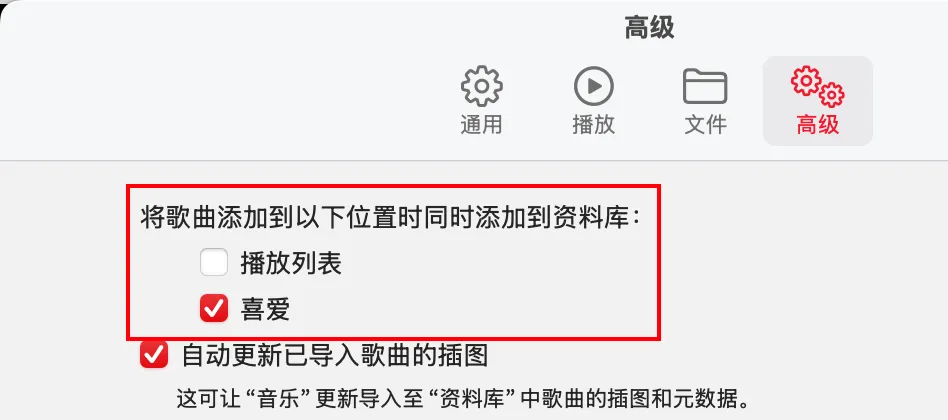
I turned off playlist syncing to avoid accidentally adding songs I don’t like to my Library when saving other people’s playlists.
My current workflow is simple: when I hear a song I like, I add it to my Library. If I really love it, I mark it as a favorite.
On desktop, AM also offers a very handy feature called Smart Playlists. You can define your own rules, and the playlist will automatically filter songs from your Library that match those rules. It’s incredibly convenient.
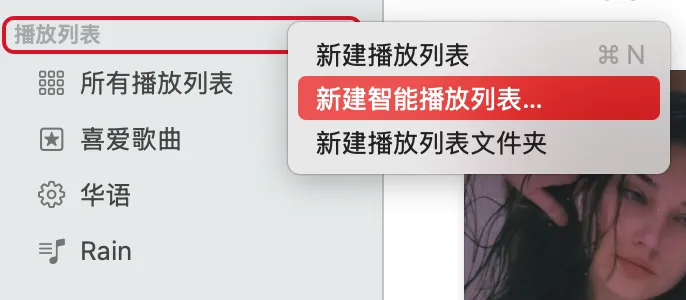
Here’s an example: back when I used NetEase Cloud Music, I simply split my playlists into “Chinese Songs” and “Other Languages.” Whenever I heard a great Chinese song, I had to both mark it as a favorite and add it to the Chinese playlist manually. But with AM, I just add it to my Library, create a Smart Playlist, and it automatically filters out all Chinese songs and syncs in real time. Much less hassle.